
Wallet FAQ
Quick answers to common questions about the CarltonOne Wallet.
Getting Started
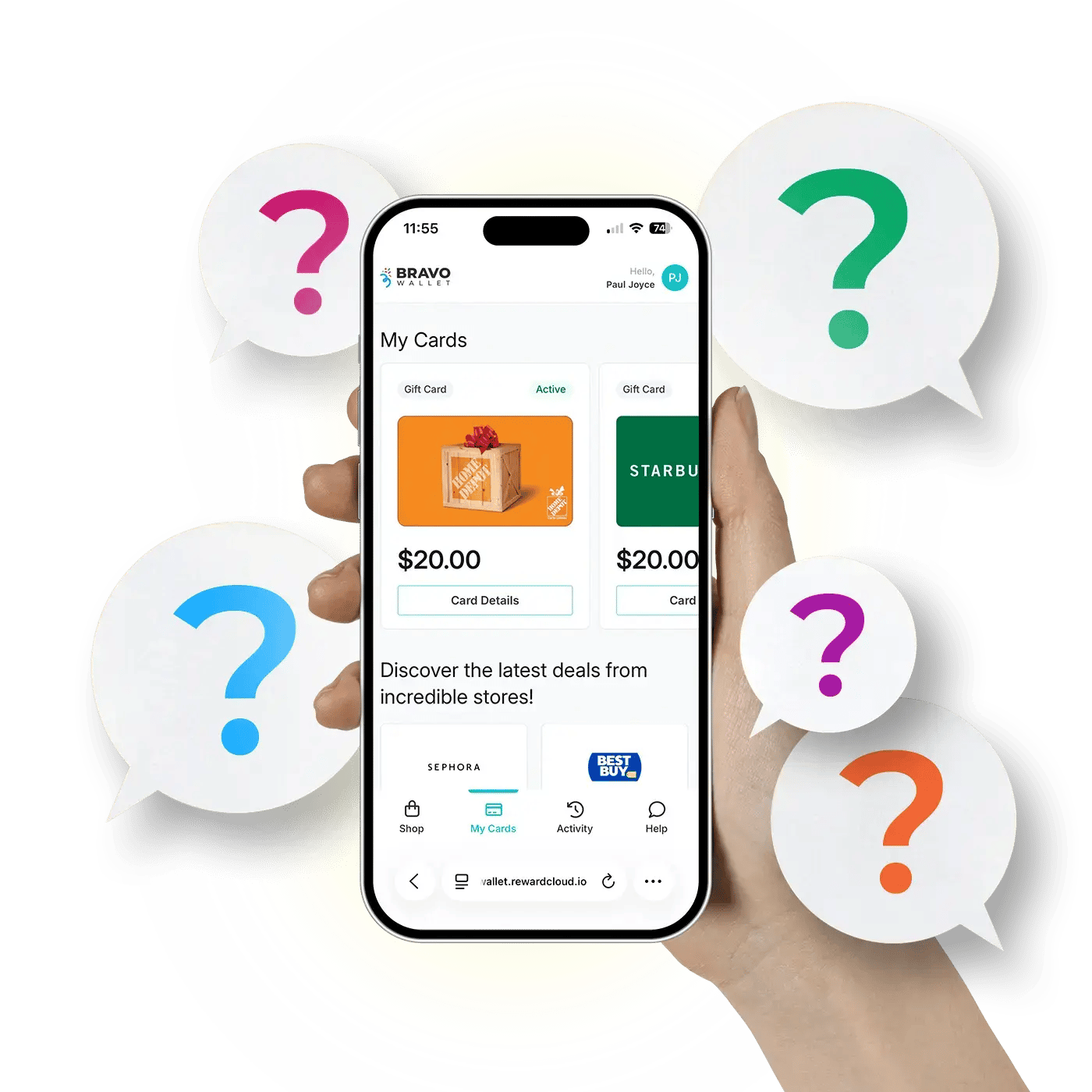
If you cannot see your card in your wallet, you will need to complete the card activation process — see Card Activation below. If you have already done so and see a Pending message, your card is still being processed — please check back later. While most orders are completed quickly, high demand for popular cards may result in additional wait time.
To activate your card, follow these steps:
- Purchase a card from your program.
- You will receive a redemption email containing a verification code.
- Click the Add to Wallet button in the email.
- Enter the verification code when prompted.
- In your cards list, click Activate Card to complete activation.
Once activated, your card details will be displayed. If a Pending message appears, your card is still being processed — please check back later.
Once your card is activated, click on it to view your card number (and PIN, if applicable). You can copy these details with a single click for easy online use.
Some cards can be added directly to Apple Wallet or Google Pay — this option will appear under the My Card section if it is available for your card.
Usage instructions can be found under the Details section.
Yes. The wallet is accessible on any mobile device through your browser. No app download is required.
Password and login management are handled through your rewards program page, not the wallet itself. Please visit your rewards program page and use the password reset option. If you continue to experience issues, contact your program administrator.
Email updates must be made from your Rewards/Recognition home page. This feature is not currently available within the wallet.
If the option is not visible on your Rewards page, it may not be available for your program. In that case, please contact your program administrator.
Managing your card
To check your balance, you have a few options:
- Some cards display balance information directly in the My Card section.
- Your History tab provides a summary of past transactions.
- If neither option is available, you can visit the retailer's website or call them directly for a balance check.
This depends on the card. Some cards are valid for both online and in-store purchases, while others are limited to online use only. Check the Details section of your card for usage instructions specific to that retailer.
This depends on the retailer. Some retailers allow split payments, while others do not. We recommend checking the retailer's website or contacting them directly to confirm before completing your purchase.
Issue & Troubleshooting
If you have not yet activated your card, please do so first. Activation may take longer for high-demand brands, in which case a Pending message will be displayed on the card tile.
If your card number (and PIN) are visible but the card is not accepted on the retailer's website, please contact the retailer directly for further assistance.
If the details on your confirmation email (or within Order Details on your rewards site) do not match what appears in your wallet, please submit a support ticket outlining what you ordered versus what you received. Our team will investigate and work to resolve the issue, however you must contact us before activating the card.
If you believe your card has been used without your authorization, contact the retailer directly as soon as possible. They will guide you through their investigation process.
Physical Cards
If you have not received your physical gift card by mail and it has been more than two weeks, please submit a support ticket and include your full mailing address (including unit number or business name, if applicable). A member of our team will look into it.
Please note: If the address on file was incorrect or incomplete, a replacement card must be approved and issued by the retailer. Not all cards are eligible for replacement. If there has been any usage on the card, or if the brand does not devalue gift cards, a replacement cannot be issued.
If you have not received your physical gift card after two weeks, please submit a support ticket with your full mailing address. Our team will open an investigation and work with you to resolve the matter.
If you received your card but it has since been lost or stolen, please contact the retailer directly. They will guide you through next steps, which may include a formal investigation and documentation.
Please note: If the address on file was incorrect or incomplete, a replacement card must be approved and issued by the retailer. Not all cards are eligible for replacement. If there has been any usage on the card, or if the brand does not devalue gift cards, a replacement cannot be issued.
Support
Support tickets can be submitted directly through the wallet. Navigate to the support or help section within the wallet, complete the form with the relevant details, and submit. Our team aims to respond within 1-2 business days.
All orders are considered final. Refunds are not accepted.
Please note that gift cards do not expire once activated, so you will have time to use them when it is convenient.